 YunLab.ai
 CHAPTER 01 · 1.6
A complete map of the desktop interface
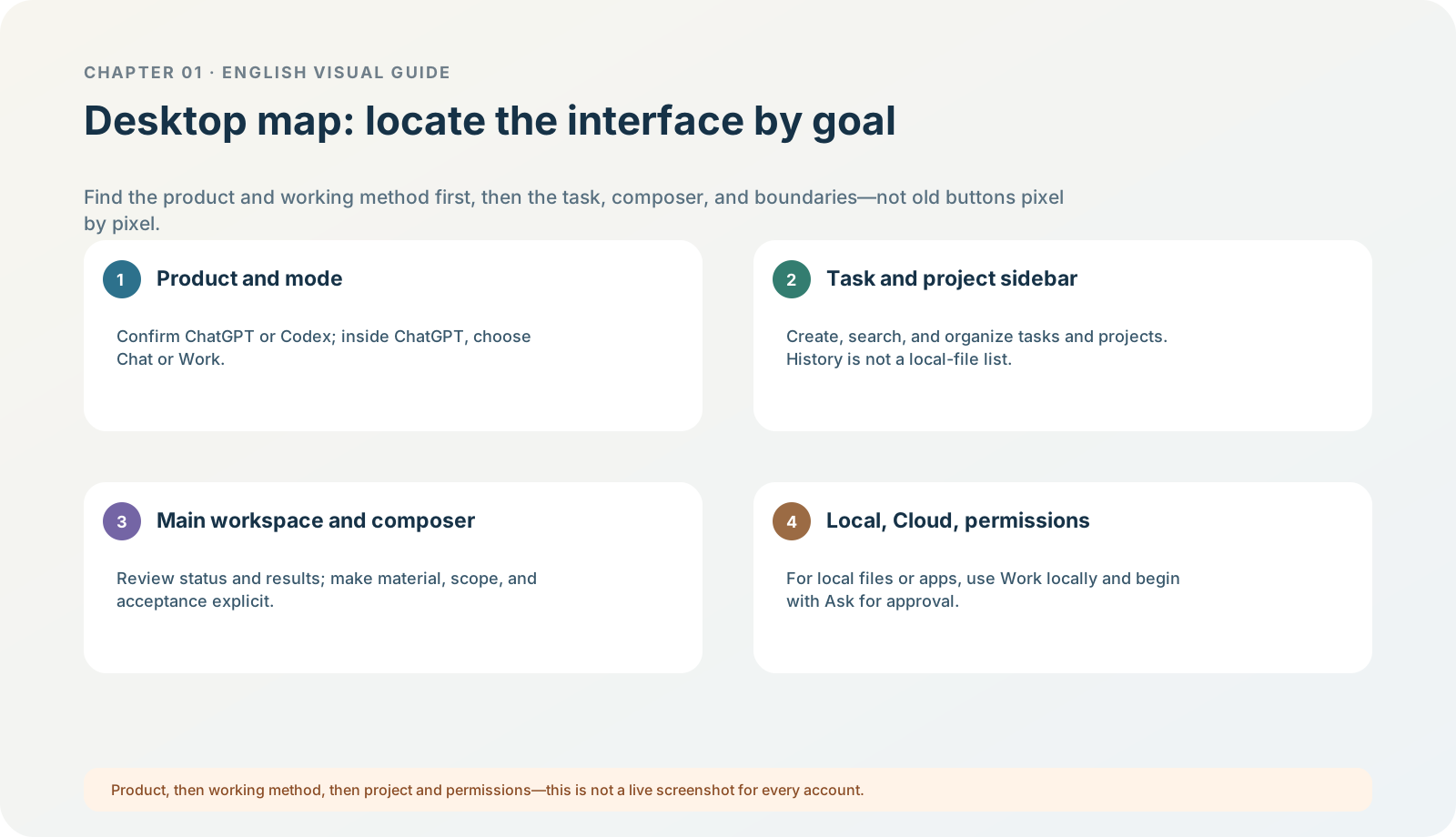
Figure 1-6 · DIA-01-V2-03. Five-layer functional map of the current desktop interface (teaching diagram, not a live-product screenshot).
This section answers: After the interface changes, how can I still find the function I need?
Learn the interface by functional goal, not pixel position
Do not memorize the new interface as “the nth icon on the left”. Reorient around the five goals below; they are the real order for every later operation in this chapter:
| Level / functional area | Problem it solves | What you should ask first |
|---|---|---|
| Product selector | Do I need the general work experience or the developer view? | Is ChatGPT or Codex currently selected? |
| ChatGPT switcher | Do I need a discussion, or a reviewable deliverable? | Is it currently Chat or Work? |
| Task and project sidebar | How do I create, search, view projects, plugins, automation, pinned threads, and old tasks? | Is this a new task, a project, a pinned thread, or history? |
| Main workspace / composer | What am I submitting, what is happening now, and where is the result? | Is the task running, waiting, awaiting approval, or ready for acceptance? |
| Local / Cloud and permission controls | Where is this task running, and how many actions can it take on its own? | Does it need local files/apps? Must it remain at Ask for approval? |
Current official information: in the desktop app, Chat within ChatGPT suits questions and back-and-forth discussion; Work is for reviewable deliverables; Codex provides technical details, diffs, and a review view. Actual entry points and eligibility depend on version, workspace, and rollout. Use ChatGPT
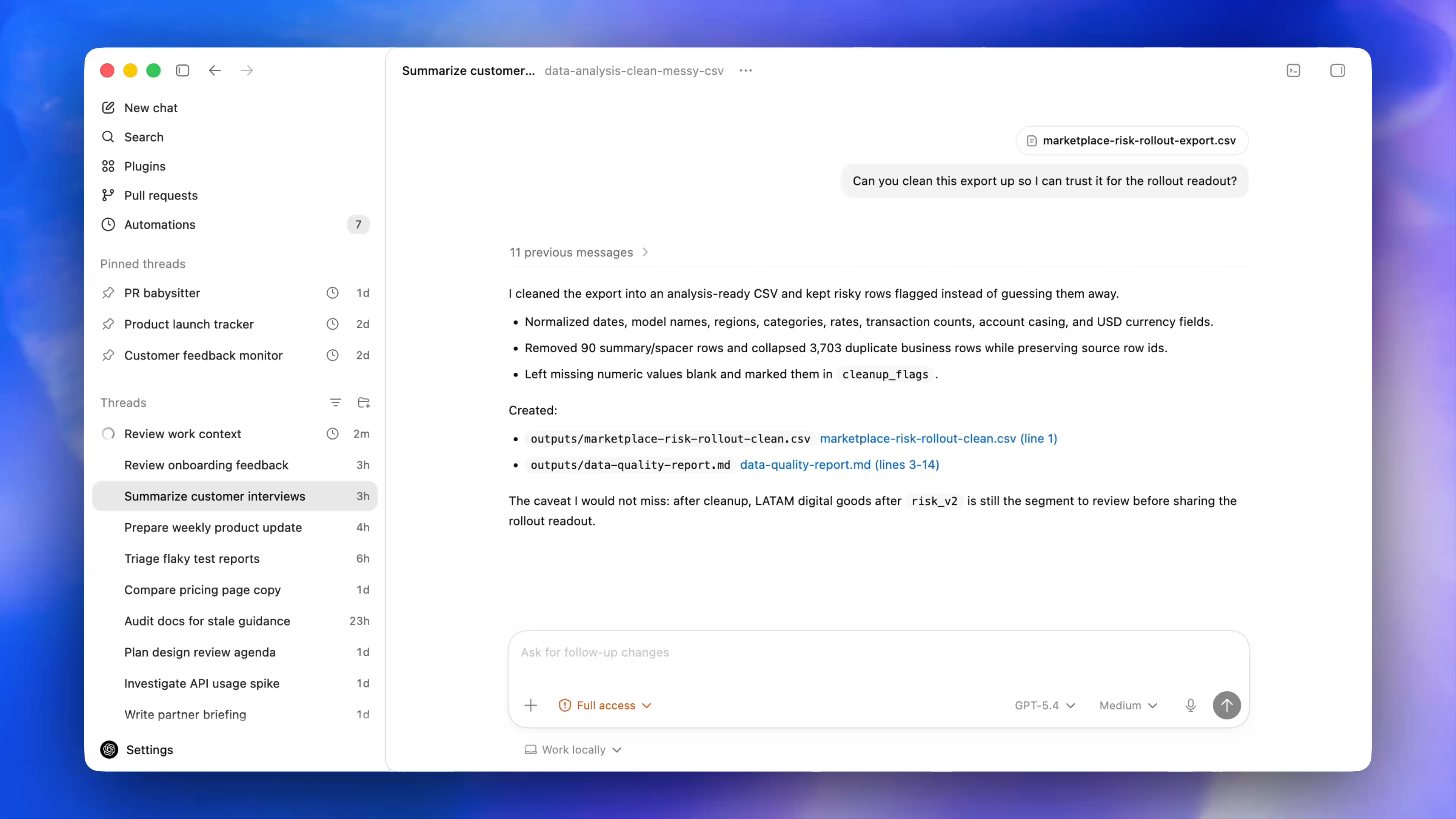
Figure 1-6A · CUR-01-06-01. The current official desktop demonstration shows New chat, Search, Plugins, Pull requests, Automations, the thread list, Settings, and Work locally. It helps you find entries by function; the specific model, permission tier, order, and project data in the image are not recommended settings for this chapter.
Follow along: one-minute navigation drill
Without entering any material, complete these in order:
- Find current identity or workspace information.
- Find the mode/experience switch.
- Find the entry points for a new task and for history/search/projects.
- Return to the main workspace and find the composer and task-status area.
- Close the current page. Do not create, upload, or send anything.
Expected result: you can describe the action as “I am looking for a new task” or “I am looking for history”, rather than “the third icon on the left”.
How to troubleshoot a missing entry point
First ask “what am I trying to complete?”, then check in order: current product → current mode → current account/workspace → app version → official guidance. Do not first assume a button is hidden, and never authorize an entire folder or connect a browser merely to locate one entry point.
Minimum exercise and acceptance
Explain aloud what problem each of the five functional areas solves, and repeat the order “product first, then Chat / Work, then project / permissions”.
Pass condition: you can reorient after an interface change, rather than being able to operate only from an old image. Common pitfall: treating sidebar history as a local-file list, or chat history as a project folder. Next: choose a way of working by outcome first.