 YunLab.ai
 CHAPTER 01 · 1.13
Task Titles and the ⋯ More Menu
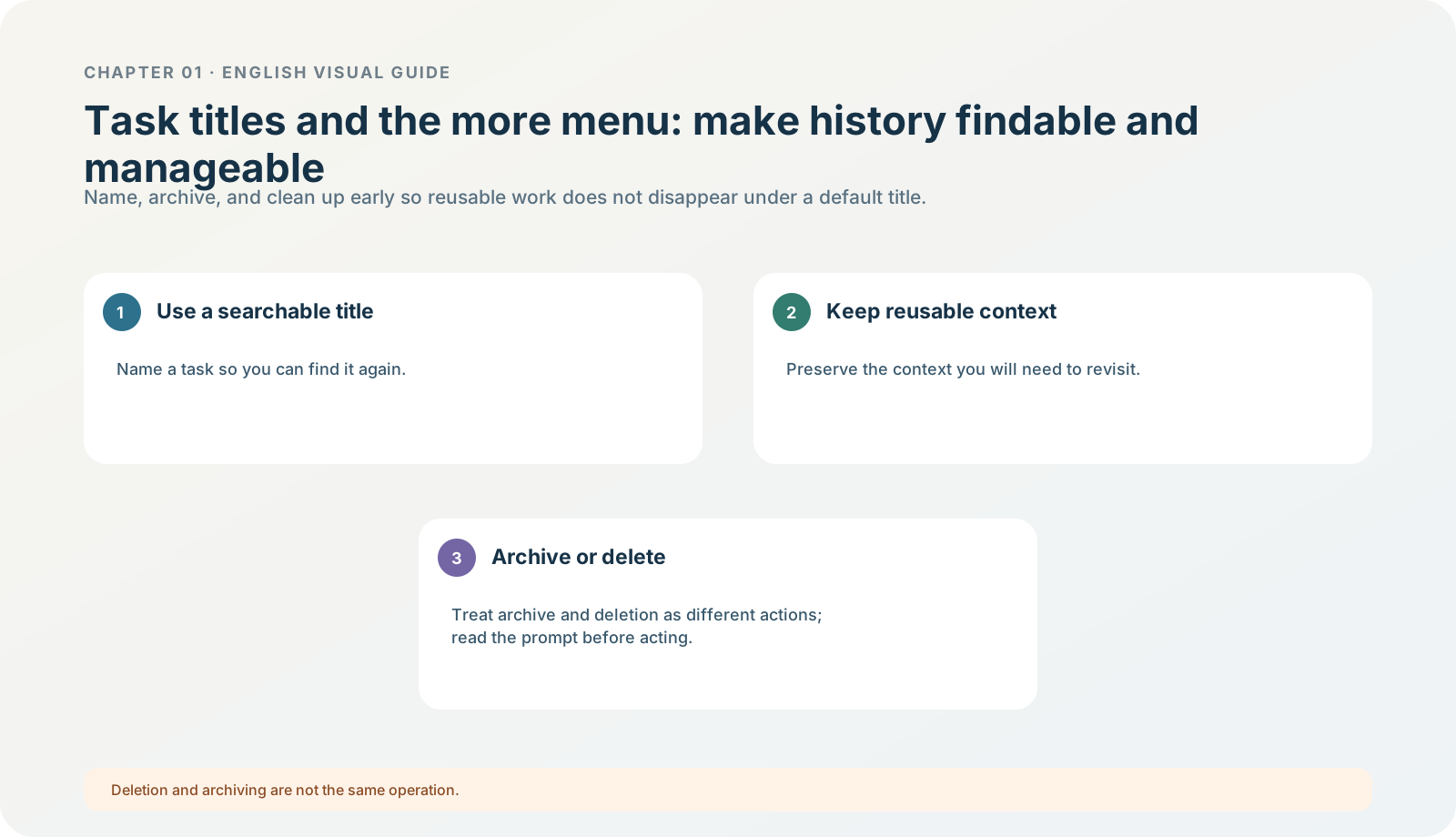
Figure 1-13 · DIA-01-13-01. Task titles and management actions (teaching diagram, not a live-product screenshot).
This section answers: Why is a title not decoration, but an entry point to learning evidence and later troubleshooting?
A title turns work from a “message stream” into a retrievable record
You will later encounter two kinds of tasks: one-off questions and tasks that need repeated checking, supplementation, and handoff. If the second kind retains only a default title, a few days later it is hard to recover which materials were used, which model ran, whether it was read-only, or whether it was accepted. A title lets you restore context through search, projects, or history.
A recommended naming formula is chapter/topic|action boundary|materials or result. For example:
Chapter 01|Read-only Exercise|North Shore Reading Club
Chapter 01|Model Comparison|North Shore Reading Club (No Web Access)
What you may see
Actions such as editing a title, pinning, archiving, deleting, sharing, or exporting can appear in the title bar, sidebar, or ⋯ more menu, and vary by version, product, and workspace. The new project workflow supports pinning projects / chats, renaming, searching, and archiving; this handbook does not require you to find every action. Chapter 01 only requires you to distinguish two high-risk actions: archiving usually hides / retains; deletion can be irreversible. Projects and chats

Figure 1-13A · In the public current OpenAI desktop demonstration, the title, project name, and⋯more menu are in the same task top bar (verified 2026-07-30; source page). The⋯is not expanded in the image; it only helps you locate the current interface and does not prove your menu has identical actions.
Follow along: name the exercise task, then check the scope once more
- Before starting the task or after creating it, rename it to a searchable title.
- Near the title or more menu, only observe whether categories such as archive, delete, and share are present.
- Do not delete, share publicly, or export.
- Write the task title and today’s date in your learning record.
Expected result: you can find this read-only exercise through keywords, rather than merely remembering “it was probably the one from a few days ago.”
One management rule
Renaming is a low-risk organizing action; deleting, sharing, and exporting are content-disposition actions. The former can aid learning; the latter affect data retention or external distribution, so you must first understand the prompt and its scope. In an organization workspace, sharing policies may differ as well.
Minimum exercise and acceptance
Change New chat to a title containing “topic + boundary.”
Passing standard: you can explain how a title helps recover the material boundary and acceptance state. Common pitfall: assuming “archive” and “delete” are simply two ordering options in the same menu. Next: even with a correct title, a reply and a file must be accepted before use.